CORSAIR iCUE
Creality Monitor
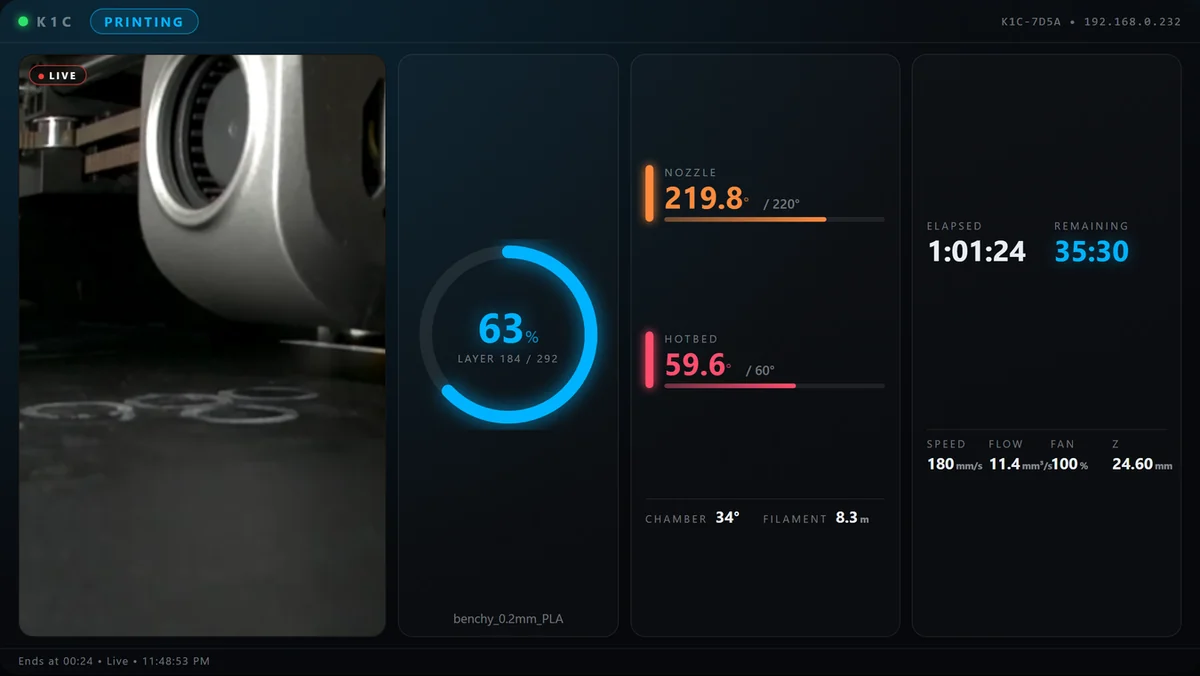
Live print status, temperatures, and camera feed right on your Xeneon Edge.
- Progress and layers
- Temperatures
- Optional camera
FOR CREALITY K-SERIES
Monitor print progress, temperatures, and control your 3D printer from Stream Deck or Corsair iCUE — directly over your local network.
ILLUSTRATION WITH SAMPLE DATA
01 / THE APPS
Free live monitoring or Pro controls for Stream Deck and Corsair iCUE.
CORSAIR iCUE
Live print status, temperatures, and camera feed right on your Xeneon Edge.
CORSAIR iCUE
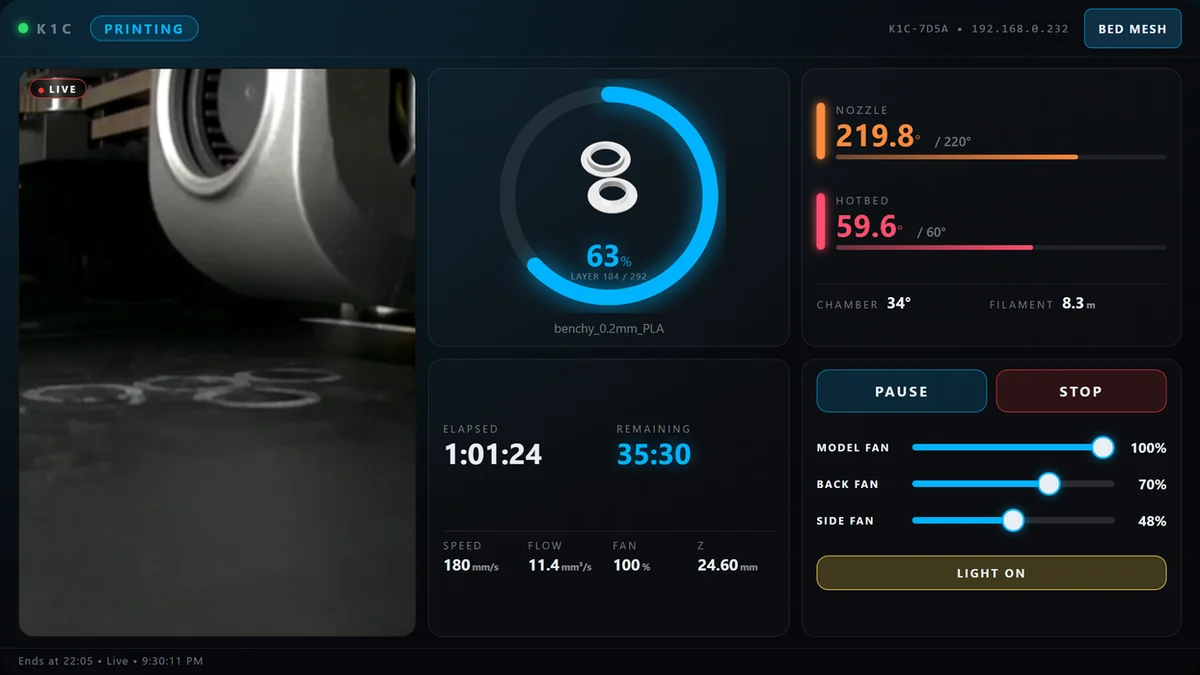
Touch controls, part preview, and a 3D Bed Mesh viewer.

STREAM DECK
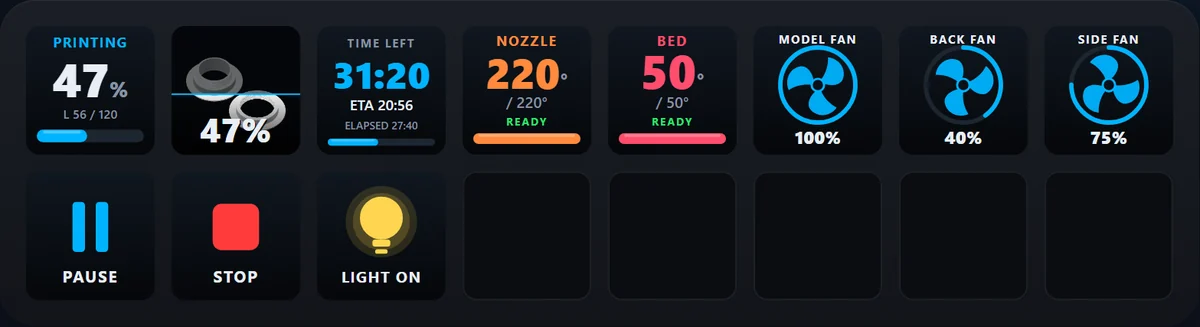
Track your print and toggle fans right from your Stream Deck.
STREAM DECK
Dynamic, animated keys with full print and fan control.
Developed and tested on the K1C. Try the free edition first on other models. Camera, part image and Bed Mesh availability depend on the printer and firmware.
COMPARE / FREE & PRO
See what is included in each edition before you choose.
| Feature | Free FREE | Pro PAID |
|---|---|---|
| Status and progress | Yes | Yes |
| Temperatures | Yes | Yes |
| Time remaining | Yes | Yes |
| Live camera | Yes | Yes |
| Part preview | No | When supported |
| Fan control | No | 0–100% + on/off |
| Pause / Resume / Stop | No | Yes |
| Chamber light | No | When supported |
| Bed Mesh (3D) | No | When supported |
| Demo mode | No | No |
| Marketplace | Open | Open |
| Feature | Free FREE | Pro PAID |
|---|---|---|
| Status and progress | Yes | Yes |
| Temperatures | Yes | Yes |
| Time remaining | Yes | Yes |
| Live camera | In settings | No |
| Part preview | No | When supported |
| Fan control | On/off | On/off or 25–100% steps |
| Pause / Resume / Stop | No | Yes |
| Chamber light | No | When supported |
| Bed Mesh (3D) | No | No |
| Demo mode | No | Yes |
| Marketplace | Open | Open |
Camera, Bed Mesh and light availability depend on the printer and firmware; the part image also depends on the file. Stream Deck Free shows video in the action settings, not on the key; Free and Pro can be used together. Bed Mesh is read-only; Stop requires confirmation.
02 / EASY SETUP
No cloud services and no extra software on your printer.
Turn on LAN Mode on your printer and make sure your PC is on the same network.
Download the Stream Deck or Corsair iCUE edition from the Elgato Marketplace.
Type your printer’s local IP in the settings and start monitoring live.
For the camera, also enter your computer’s local IP address. In Stream Deck Pro, enter “demo” to try it without a printer.
COMMUNITY / TESTERS
Expanding printer compatibility and catching edge-case bugs is possible thanks to community members who take the time to test and share diagnostics.
Testing and diagnostics on K2 Pro / K2 SE
Creality Hi Combo diagnostics and catching an iCUE settings bug
Have another Creality model and want to help test? Get in touch
03 / SUPPORT
Let us know what is happening. The more detail you include, the faster we can help.
It helps to include
SUPPORT / 001
Fields marked with * are required.